Advanced Troubleshooting
Use this page when captions do not appear, when the audio device cannot be found, or when the translation quality is poor.
No captions are appearing
Check which audio input device the browser is using. Confirm that the correct microphone is selected and that the event computer is receiving audio.
If the device is missing from the browser’s microphone list, continue with Checking the audio device on your computer.
Checking the audio device on your computer
First, make sure your audio interface or microphone is properly connected to the Chotto.Event host computer. Confirm that the device can be seen in your operating system. You can check this in the following settings:
Please make sure that the correct input device is selected from the list. Some host machines may have multiple audio input devices listed. It is important to enable and select the correct device.
- Windows: Open Settings > System > Sound, then check the list under Input. Speak into the microphone and confirm the input level changes.
Windows screenshots
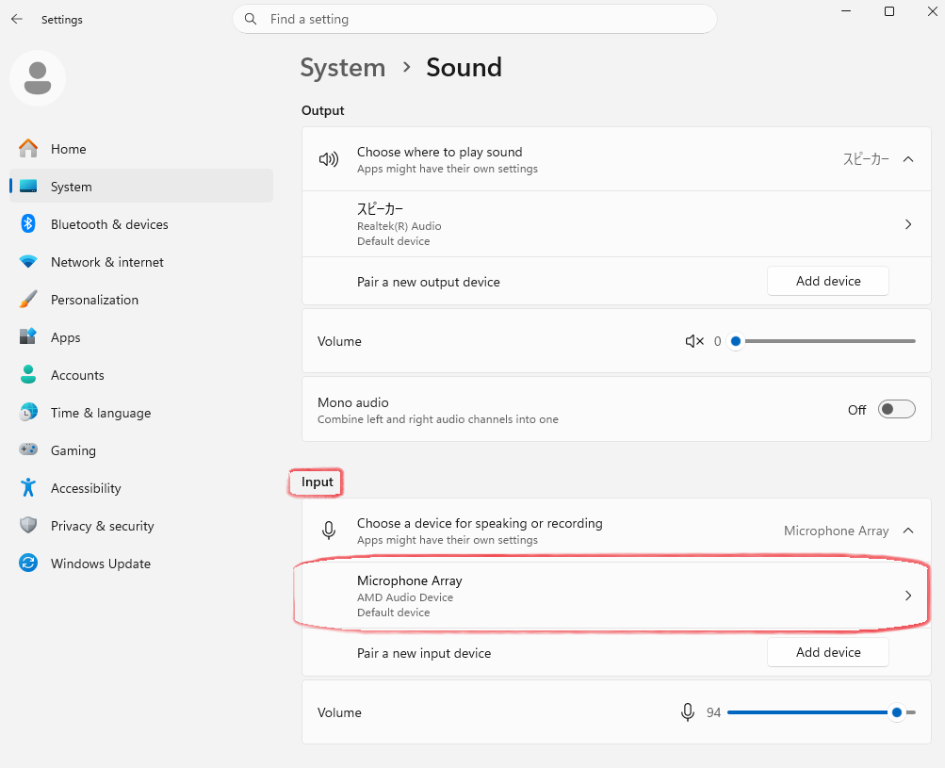
Windows Audio settings: check the selected device under Input. 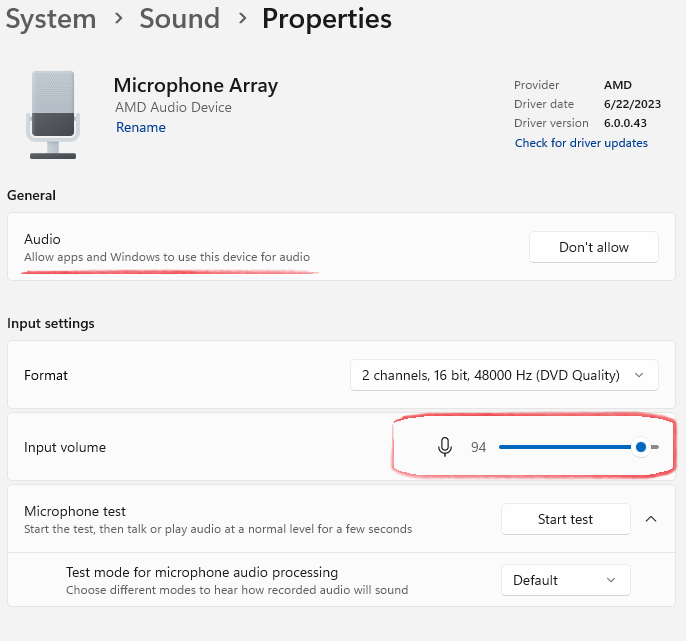
Windows microphone properties: confirm that apps can use the device and check the input volume. - macOS: Open System Settings > Sound > Input, select the device, and check that the input level responds when you speak.
macOS screenshots
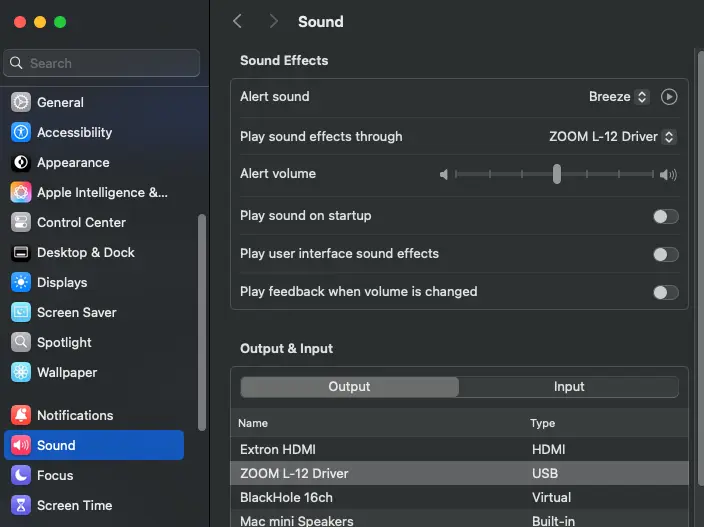
macOS Sound settings: open the Input tab and select the connected device. 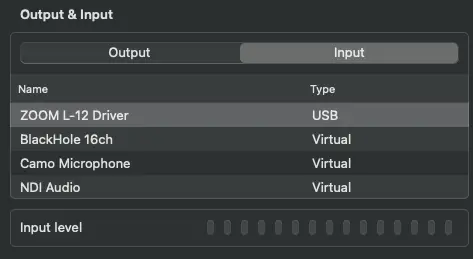
macOS input devices: select the correct microphone and check the input level.
If the device is not listed in your system settings, reconnect it and check that it is powered on. If it still does not appear, ask your AV team or device manufacturer for help.
Selecting the correct audio device in your browser
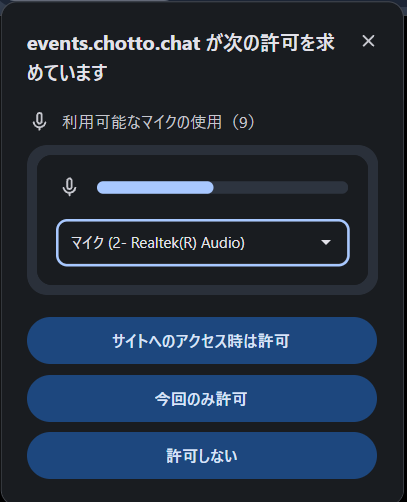
- Return to the Chotto.Event room and open the browser’s microphone permission prompt or site settings.
- Select the audio interface or microphone connected to the computer, then allow microphone access.
- Reload the Chotto.Event room if the input device still does not appear.
The translation is poor or a different language appears on the captions screen
If the captions are inaccurate or of poor quality, if the wrong words are being transcribed, or if there are translation errors, first check how the audio device is being held. The position of a handheld or lapel microphone has a large effect on recognition quality.
Microphone best practices
- Keep the right distance. Hold a handheld microphone about 5–10 cm (2–4 inches) from your mouth. Clip a lapel microphone to your chest, roughly 15–20 cm (6–8 inches) below your chin.
- Do not hold it too far away. A microphone at arm’s length picks up room noise and reverb, which the recognizer may transcribe as incorrect words.
- Avoid pointing it at speakers. Keep the microphone away from monitor speakers and air vents to reduce feedback and wind noise.
- Speak clearly and naturally. Use your own native language at a steady pace. Do not shout, whisper, or rush.
- Pause briefly between topics. Short pauses help the recognizer separate sentences and produce cleaner translations.
Check the selected language
If a different language appears on the captions screen, confirm that the correct spoken language is selected in the room, and that the audience display is showing the language you expect. See Adjusting translation settings for how to show, hide, and reorder languages.
If the problem continues, add names and specialist terms as Hot Words before the event. See How can I improve translations of names and specialist terms?
How can I improve the visual quality of my Events screen?
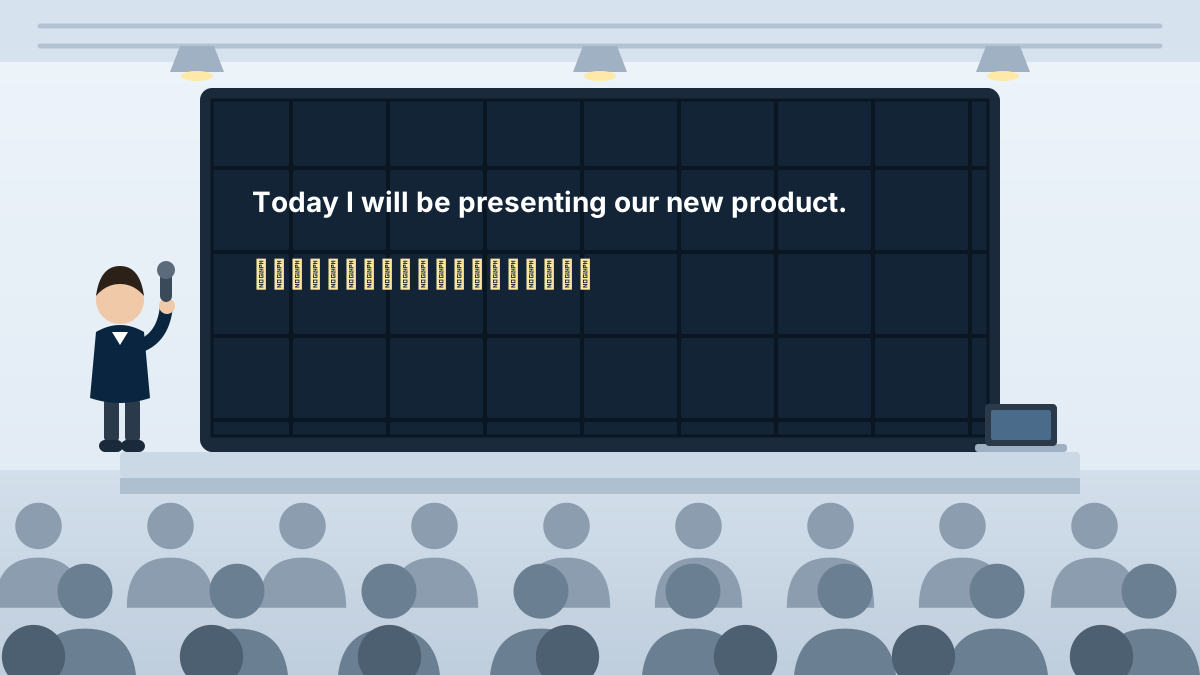
You may encounter issues when displaying the Events screen, such as text that is too small or captions that are difficult to read. You can fix most of these problems from the Chotto.Event toolbar or from your browser.
Adjust the text size in Chotto.Event
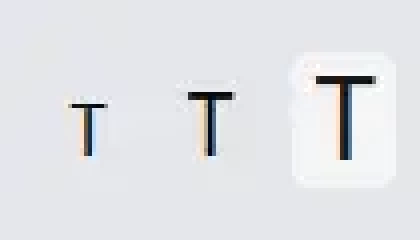
Use the text size buttons on the top right of the Chotto.Event toolbar. Click the small, medium, or large T icon to change the size of the text on screen.
Zoom the browser
If the display monitor is very large, for example a segmented LED wall in a large event hall, and Chotto.Event captions are difficult to see, you can also increase the browser zoom level:
- Hold Ctrl and scroll the mouse wheel up to zoom in, or down to zoom out.
- Or press Ctrl + + to zoom in and Ctrl + - to zoom out. Press Ctrl + 0 to reset the zoom level.
- On macOS, use Cmd instead of Ctrl.
Sharing the Events room with audience members for Q&A
To share the Events translation room with audience members, press the side panel button on the top right of the toolbar. The sidebar then appears on the left side of the screen.
Audience members can then scan the QR code with their phone and read captions and translations from their own device.
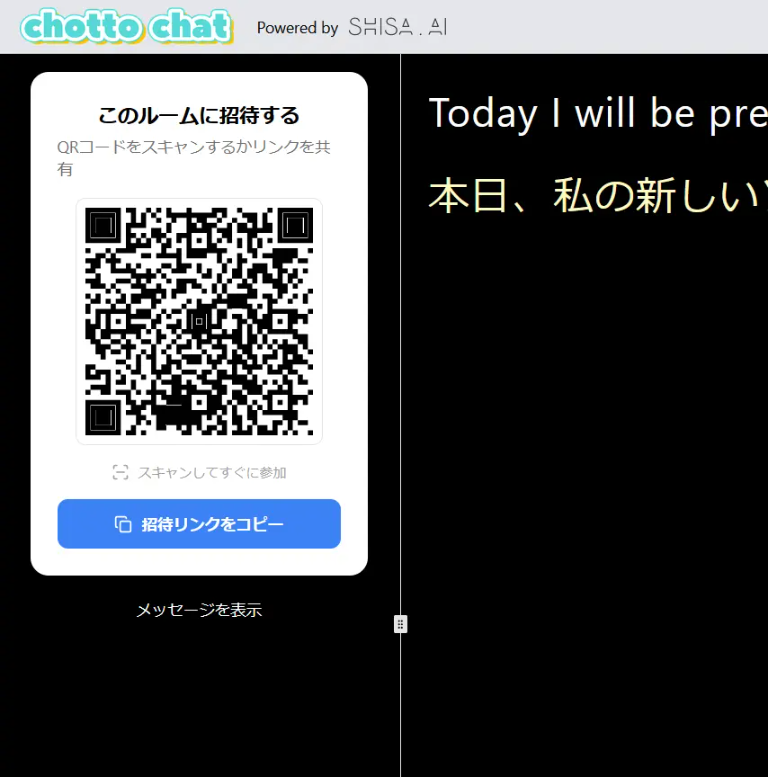
You can turn off the side panel at any time by pressing the side panel button again.